
AI image editor
Change the image without losing the design.
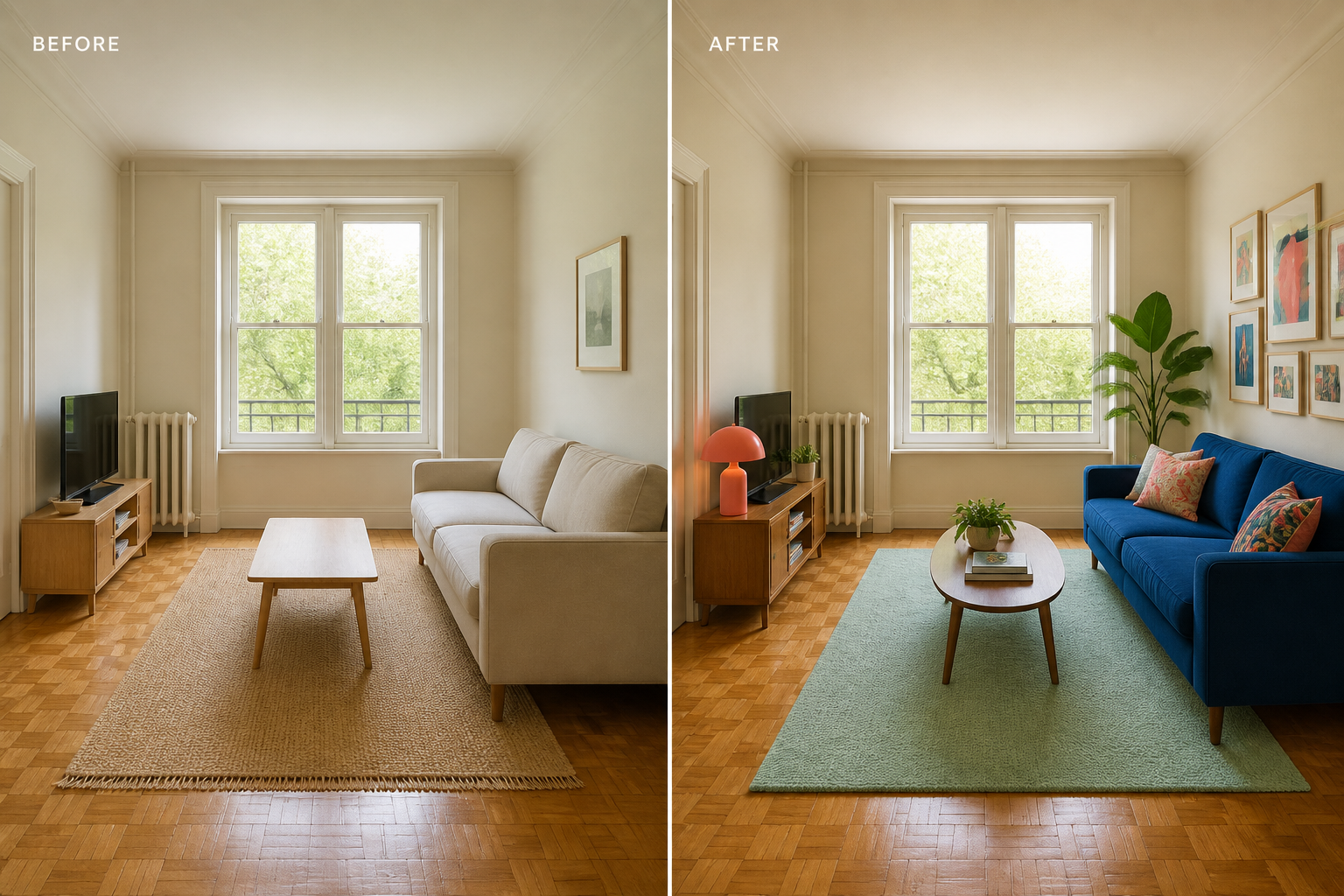
Mask a region, propose a specific change, compare candidates, and keep the original layout and document history intact.
How it works
A clear path from intent to editable result.
- 01
Select the exact ImageLayer
The edit begins from one stored source asset already referenced by the document.
- 02
Define the region and change
Source and alpha mask are canonicalized to matching PNG dimensions before the image request.
- 03
Choose the replacement asset
Selecting a candidate issues one update-layer command and preserves the original asset record for comparison.
Designed for the last mile
What stays open to review.
- Masked editsBrush a region and describe a concrete replacement while retaining the surrounding composition.
- OutpaintExpand an image through a transparent padded source and matching alpha guidance.
- Crop and appearanceUse non-destructive crop, filters, effects, and opacity on the resulting ImageLayer.
- Version checkpointsSave a version checkpoint before making major image changes.
- Immutable source assetsNew output bytes become new Asset records instead of overwriting the source.
- Explicit applyAI tools propose and preview; the document changes only after confirmation.
FAQ
Questions about ai image editor.
Does a mask guarantee exact pixels?
No. The mask guides the model. Retake validates dimensions and preserves the source, but generative edits are not a pixel-exact selection tool.
What happens to the original image?
It remains an immutable asset. The selected candidate becomes a separate asset referenced by the same ImageLayer.
Can outpaint update a rotated image?
Not currently. Reset the image rotation before using outpaint.
Give the Agent a real marketing brief.
Generate a complete first pass, then refine copy, visuals, layout, and every format as an editable design.